

Jira Software can do far more than track bugs and manage sprint backlogs.
When configured properly, it can become a central workspace for planning, prioritization, development tracking, reporting, and workflow automation. But there is an important distinction between having Jira and using Jira effectively.
As teams grow, Jira environments can become increasingly complex. Too many issue types, unnecessary custom fields, poorly designed workflows, duplicate boards, manual reporting, and disconnected development tools can make the platform harder to use instead of easier.
The good news is that you do not always need a major Jira redesign to improve productivity. Small changes in how teams create issues, structure work, search for information, manage boards, and connect development tools can make a noticeable difference.
In this guide, we cover 10 practical Jira Software tips and tricks that can help teams simplify daily work, improve visibility, strengthen collaboration, and get more value from Jira.
If your Jira environment has already grown beyond simple project tracking and you are dealing with workflow complexity, automation requirements, integrations, or administration challenges, MicroGenesis Jira Services can help you assess and optimize your Atlassian environment.
Start With Simple, Purpose-Driven Issue Types
One of the easiest ways to make Jira unnecessarily complicated is to create too many issue types.
Jira can support different work items such as:
- Story
- Task
- Bug
- Epic
- Sub-task
The problem begins when organizations create custom issue types for every variation of work.
For a new Jira project, start with the issue types your team genuinely needs. For many software teams, a simple structure built around Epic, Story, Task, Bug, and Sub-task may be enough.
The goal is not to make every type of work look different. The goal is to make it easy for users to understand:
What needs to be done?
Who owns it?
Why does it matter?
Where does it fit in the larger initiative?
Why this improves productivity
A simpler issue model can reduce confusion during backlog management and make reporting easier.
It also makes onboarding easier because new users do not need to learn a complicated taxonomy before they can start contributing.
As Jira environments mature, however, simplifying issue types may require a broader cleanup. If your organization already has years of Jira configuration accumulated across projects, consider reviewing Enterprise Jira Cleanup Best Practices before making structural changes.
Create Issues Without Breaking Your Workflow
A productive Jira team should be able to capture work quickly.
During sprint planning, backlog refinement, meetings, or daily discussions, requiring users to navigate through multiple screens just to create a basic issue can introduce unnecessary friction.
Jira provides streamlined ways to create issues directly from the areas where teams are working.
Use this capability to capture:
- New tasks
- Bugs
- User stories
- Follow-up actions
- Improvement ideas
But speed should not come at the expense of useful information.
Create a practical minimum standard for issue creation.
For example, a new story might require:
- Clear summary
- Description
- Assignee or team
- Priority
- Relevant epic
- Acceptance criteria where appropriate
The objective is to capture work quickly without creating incomplete or ambiguous work items.
A useful rule
If users consistently skip a field, ask whether the field is genuinely necessary.
More fields do not automatically create better project management.
Connect Jira Issues With Development Work
Jira becomes considerably more valuable when project management information is connected with actual development activity.
For software teams using Git, include the Jira issue key in:
- Branch names
- Commit messages
- Pull requests
For example:
PROJ-123-add-login-validation
This creates a recognizable relationship between the Jira issue and the development work associated with it.
Instead of asking:
“Has the developer started working on this?”
a project manager can use the connected development information to understand whether the work has moved into development, review, or another stage.
Why this matters
Connecting planning and development improves:
- Traceability
- Collaboration
- Release visibility
- Developer-project manager communication
- Status reporting
It also reduces the need for developers to manually update stakeholders about every development activity.
If your teams rely heavily on Bitbucket or other Atlassian development tools, integrating those systems with Jira can create a more connected delivery workflow. You can also explore integrating Jira with Confluence and other tools for productivity.
Build Boards Around How Teams Actually Work
A Jira board should help a team understand its work at a glance.
It should not simply reproduce the organization’s entire workflow.
For example, a development team might use:
To Do → In Progress → Code Review → Testing → Done
Another team may need:
Backlog → Analysis → Development → Validation → Ready for Release → Done
The right workflow depends on how the team operates.
Avoid this common mistake
Organizations sometimes create workflows containing too many statuses because they want to represent every possible activity.
The result can be a board where users spend more time updating status than completing work.
A good board should answer three questions quickly:
- What is waiting?
- What is currently being worked on?
- What is blocked?
If your Jira workflows have become difficult to understand, reviewing Jira Agile Workflows and Boards can help you identify opportunities to simplify the way work is represented.
Is your Jira workflow slowing your team down instead of helping it?
MicroGenesis can assess your existing Jira configuration, identify unnecessary complexity, and help design workflows that better reflect how your teams actually work.
Talk to MicroGenesis About Jira Optimization
Use Sub-tasks Only When They Add Real Value
Sub-tasks can be useful when a larger piece of work genuinely needs to be divided among smaller activities.
For example:
Story: Implement customer authentication
Sub-tasks might include:
- Create authentication API
- Develop login interface
- Add validation
- Write unit tests
- Complete integration testing
This provides visibility into the work required to complete the story.
However, avoid creating sub-tasks simply because a task contains several steps.
Too many layers can make Jira difficult to manage.
Use a sub-task when:
- The work needs to be broken down for execution.
- Different people need ownership.
- Progress needs to be tracked separately.
- The parent issue remains incomplete until the individual activities are finished.
Avoid a sub-task when:
- It is simply a checklist item.
- It adds no meaningful reporting value.
- It creates unnecessary hierarchy.
The goal is useful visibility, not maximum detail.
For teams struggling to decide how to structure work, understanding the difference between Story vs Epic vs Task in Jira can help establish a cleaner issue hierarchy.
Learn Jira Keyboard Shortcuts
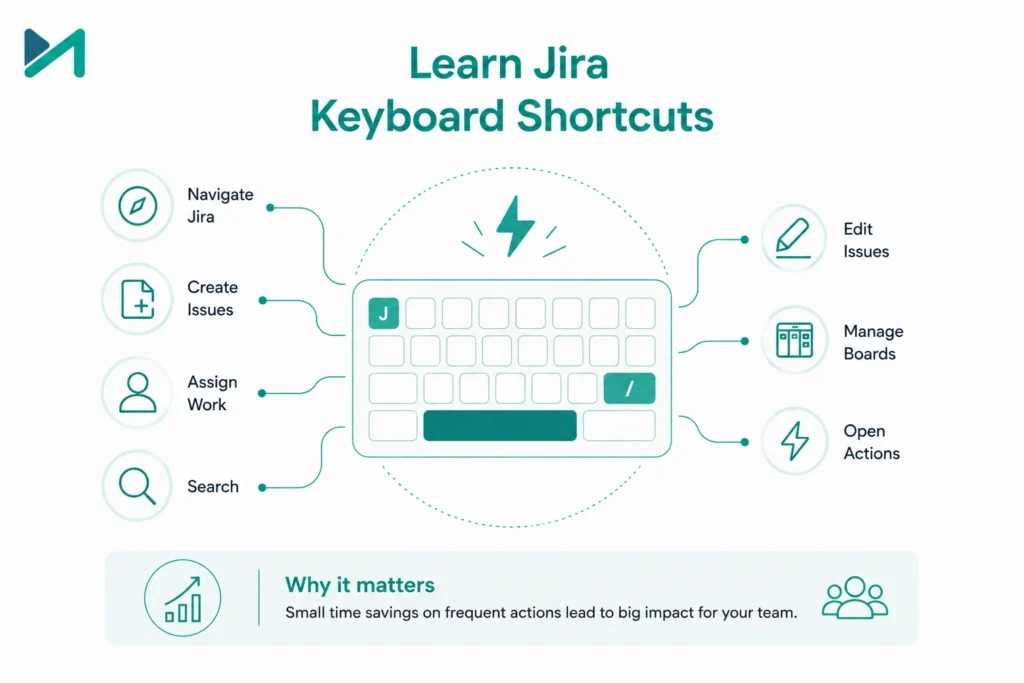
This may seem like a small improvement, but frequently used shortcuts can make Jira navigation considerably faster for experienced users.
Instead of repeatedly moving between menus and screens, users can perform common actions more efficiently.
Keyboard shortcuts can help with activities such as:
- Navigating Jira
- Creating issues
- Assigning work
- Searching
- Editing issues
- Managing boards
- Opening actions
The exact shortcuts available can depend on the Jira interface and configuration, so teams should refer to the current Jira documentation when creating an internal shortcut guide.
Why it matters
Consider how often a project manager, developer, Scrum Master, or product owner interacts with Jira during a working day.
Even small reductions in repetitive navigation can add up across a large team.
The broader principle is more important than the shortcut itself:
Make frequent Jira actions as frictionless as possible.
Use JQL and Saved Searches to Find Information Faster
One of Jira’s most powerful capabilities is Jira Query Language (JQL).
Instead of manually filtering through hundreds or thousands of issues, teams can create precise searches.
For example, a team could create searches for:
- High-priority open bugs
- Issues assigned to a specific team
- Work due this week
- Unresolved issues in a particular project
- Stories belonging to a specific sprint
- Blocked work
- Issues without an assignee
Once a useful query has been created, save it so the team can reuse it.
This can support:
- Dashboards
- Reports
- Filters
- Boards
- Project reviews
- Management reporting
Example
Instead of repeatedly searching for:
Open critical bugs assigned to the development team
you can create a reusable JQL filter and use it whenever needed.
This turns Jira from a simple task list into a searchable operational information system.
Turn Jira Dashboards Into Decision-Making Tools
A Jira dashboard should do more than display charts.
The best dashboards help different stakeholders answer the questions that matter to them.
Development team
- What is currently in progress?
- What is blocked?
- Which bugs need attention?
Scrum Master
- How is sprint progress?
- Is work accumulating?
- Are issues remaining unresolved?
Product Manager
- Which initiatives are progressing?
- What is planned next?
- Where are the major delivery risks?
Leadership
- Are strategic initiatives progressing?
- What work is delayed?
- Where are capacity constraints?
A useful dashboard may combine saved searches with relevant Jira gadgets and reporting views.
Avoid adding every available gadget simply because it looks useful.
A dashboard overloaded with information can be just as ineffective as having no dashboard at all.
Better approach
One dashboard → One audience → One decision-making purpose.
Use Bulk Actions When Managing Large Amounts of Work
Jira teams frequently need to update multiple issues at once.
Examples include:
- Assigning a group of issues
- Changing priorities
- Updating labels
- Moving work between projects
- Updating fields
- Preparing work during project migration
Doing these tasks individually is inefficient and increases the risk of inconsistent updates.
Where appropriate, Jira’s bulk operations can reduce repetitive administration.
Important consideration
Bulk actions should be governed carefully.
Before performing a large update:
- Confirm the filter.
- Review the affected issues.
- Verify permissions.
- Confirm the intended change.
- Perform the update.
- Validate the results.
This is particularly important in enterprise Jira environments where thousands of issues may be affected by a single administrative action.
If your organization is regularly performing large-scale Jira administration or restructuring, that may indicate a need for a broader governance review rather than simply more manual administration.
Connect Jira With the Tools Your Teams Already Use
Jira becomes more valuable when it fits into the broader technology ecosystem instead of operating as an isolated application.
Depending on your environment, Jira can work alongside tools used for:
- Source code management
- Documentation
- Collaboration
- CI/CD
- Testing
- Service management
- Reporting
- Product discovery
For example, connecting Jira with development repositories can provide greater visibility into commits and pull requests.
Connecting Jira with Confluence can help teams maintain project documentation alongside their work management environment.
Integrations should have a clear purpose, however.
Do not integrate tools simply because an integration exists.
Ask:
What information needs to move between systems?
Who needs that information?
How frequently does it change?
Can the integration reduce manual work or improve visibility?
This approach helps prevent integration sprawl.
Bonus Tip: Review Your Jira Configuration as Your Organization Grows
The Jira setup that works for a 10-person team may not work for a 500-person organization.
Growth can introduce:
- More projects
- More users
- More workflows
- More custom fields
- More automation rules
- More integrations
- More boards
- More permissions
- More reporting requirements
Over time, this can create Jira configuration debt.
Symptoms may include:
- Slow or confusing workflows
- Duplicate fields
- Unused configurations
- Difficult administration
- Inconsistent project structures
- Poor reporting
- User complaints
- Performance concerns
If your Jira environment has reached this stage, the answer may not be another plugin or customization.
It may be time for a Jira health check and optimization exercise.
How to Improve Jira Productivity at Scale
The 10 tips above work best when combined with a broader Jira governance strategy.
A mature Jira environment should consider five areas.
Configuration Governance
Establish standards for:
- Issue types
- Workflows
- Custom fields
- Screens
- Permissions
- Projects
Workflow Governance
Review workflows regularly and remove unnecessary complexity.
Automation
Automate repetitive activities such as:
- Notifications
- Assignments
- Status transitions
- Approvals
- Routine updates
Integration Strategy
Connect Jira with tools that genuinely improve collaboration and delivery visibility.
Performance and Scalability
As the number of users, projects, issues, workflows, and integrations increases, continuously monitor the health of your Jira environment.
If you are experiencing performance issues as your organization grows, our guide on Jira performance issues for growing teams covers some of the areas worth investigating.
Jira Tips for Different Types of Teams
Not every team should use Jira in exactly the same way.
Software Development Teams
Prioritize:
- Backlogs
- Sprints
- Stories
- Bugs
- Development integration
- CI/CD visibility
- Release tracking
Product Teams
Focus on:
- Epics
- Roadmaps
- Prioritization
- Product discovery
- Dependencies
- Customer-driven work
Teams using Jira Product Discovery can also benefit from best practices for roadmaps and visual views in Jira Product Discovery.
Business and Non-Technical Teams
Marketing, HR, finance, operations, and other departments may benefit from simpler project structures.
Do not force a software development workflow onto a business team simply because Jira was originally designed with software teams in mind.
Instead, configure Jira around the team’s actual work.
Our guide to Jira for non-technical teams explores this approach in more detail.
When Jira Needs More Than Basic Configuration
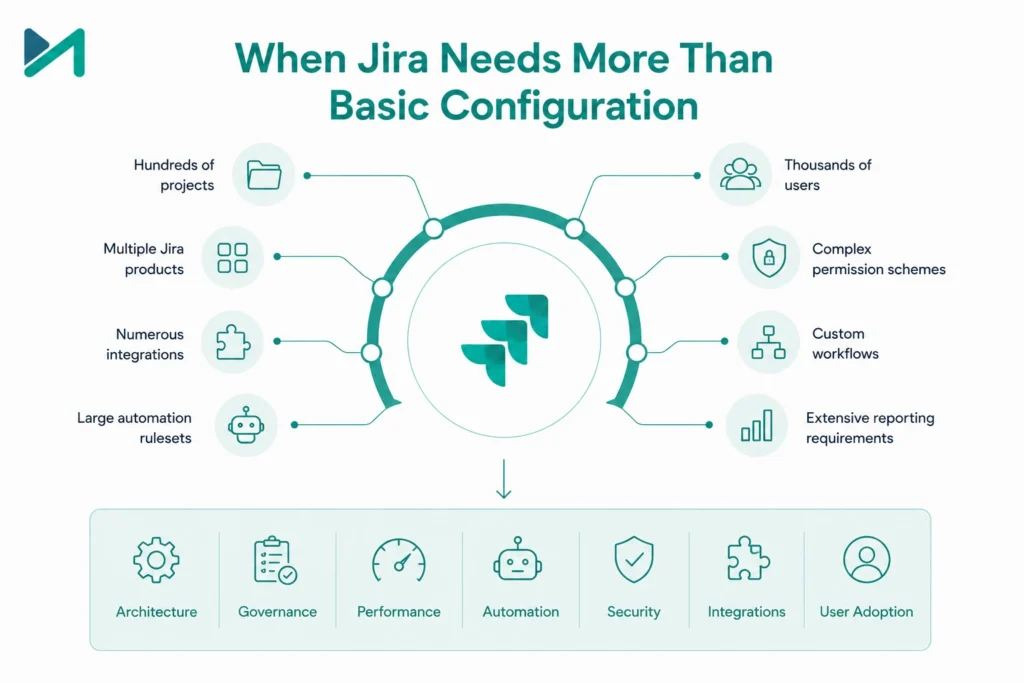
There is a point where Jira administration becomes an engineering and governance challenge.
For example, an enterprise may have:
- Hundreds of projects
- Thousands of users
- Multiple Jira products
- Complex permission schemes
- Numerous integrations
- Custom workflows
- Large automation rulesets
- Extensive reporting requirements
At that scale, simply knowing Jira’s features is not enough.
You need a strategy for architecture, governance, performance, automation, security, integrations, and user adoption.
Is your Jira environment becoming harder to manage as your organization grows?
MicroGenesis helps organizations evaluate Jira environments, simplify configurations, improve workflows, integrate Atlassian tools, and establish scalable governance practices.
Explore MicroGenesis Jira Services
How MicroGenesis Can Help You Get More From Jira
Jira optimization is not about adding more features.
It is about making the platform work better for the way your organization operates.
MicroGenesis can help organizations with:
Jira Consulting
Assess your current Jira environment and identify opportunities for optimization.
Jira Implementation
Design and configure Jira around your organization’s project and delivery processes.
Workflow Optimization
Simplify workflows, issue structures, screens, fields, and approvals.
Jira Automation
Identify repetitive activities that can be automated to reduce manual effort.
Atlassian Integrations
Connect Jira with development, collaboration, documentation, service management, and other enterprise tools.
Jira Administration and Governance
Establish standards that help maintain a manageable Jira environment as your organization grows.
Jira Service Management
For organizations using Jira beyond software development, MicroGenesis can also help implement and optimize service management workflows, request management, incident management, change management, and related processes.
If your team is using Jira every day but still relies heavily on spreadsheets, manual updates, disconnected tools, or complicated workflows, it may be time to optimize the platform rather than simply add more features.
Talk to MicroGenesis About Your Jira Environment
Frequently Asked Questions About Jira Software
What is the best way to improve productivity in Jira?
Start by simplifying issue types and workflows, using saved searches and dashboards, connecting Jira with development tools, and automating repetitive activities. Jira should make work easier to understand and manage, not add administrative overhead.
How can Jira help software development teams?
Jira can support backlog management, sprint planning, issue tracking, development traceability, reporting, collaboration, and integration with development tools.
Should every Jira project use the same workflow?
Not necessarily. Organizations should establish governance standards while allowing workflows to reflect meaningful differences in how teams work. The objective should be consistency where it adds value, not forced uniformity.
How do I know if my Jira configuration needs optimization?
Common warning signs include excessive custom fields, complicated workflows, duplicate projects, inconsistent configurations, manual reporting, poor user adoption, and performance problems.
Can Jira be used by non-technical teams?
Yes. Jira can be configured for teams such as marketing, HR, operations, and finance. The key is to design the project structure and workflow around their actual work rather than copying a software development process.
Is Jira suitable for enterprise organizations?
Jira can support complex organizations, but enterprise-scale environments require stronger governance around configuration, permissions, workflows, automation, integrations, and administration.
Final Thoughts: Make Jira Work for Your Team
Jira’s flexibility is one of its biggest strengths.
But flexibility without governance can eventually create complexity.
The most productive Jira environments are not necessarily the ones with the most customizations. They are the ones where users can quickly understand their work, managers can see meaningful progress, developers can connect their work to delivery, and administrators can maintain the environment without unnecessary complexity.
Start with the fundamentals:
- Keep issue types purposeful.
- Make issue creation simple.
- Connect Jira with development activity.
- Design boards around real team workflows.
- Use subtasks selectively.
- Take advantage of efficient navigation.
- Use JQL and saved searches.
- Build dashboards around decisions.
- Use bulk operations carefully.
- Integrate Jira with the tools that genuinely improve productivity.
Then take the next step: periodically review whether Jira is still aligned with the way your organization works.
Because the goal isn’t simply to use more of Jira.
The goal is to make Jira work better for your people, processes, and business.
Ready to Get More From Jira?
If your organization needs help with Jira implementation, optimization, workflow design, automation, integrations, or service management, MicroGenesis can help you build an Atlassian environment that scales with your business.
Explore MicroGenesis Jira Services
Simplify the workflow. Improve visibility. Reduce manual effort. Unlock more value from Jira.